PDF to Word Converter
This PDF to Word converter rebuilds your PDF as a DOCX you can edit, right inside your browser. The file stays on your device the whole time, and there is no account or watermark.
PDF → Word
Converted on this device. Your files are never uploaded.
How it works
Add your PDF
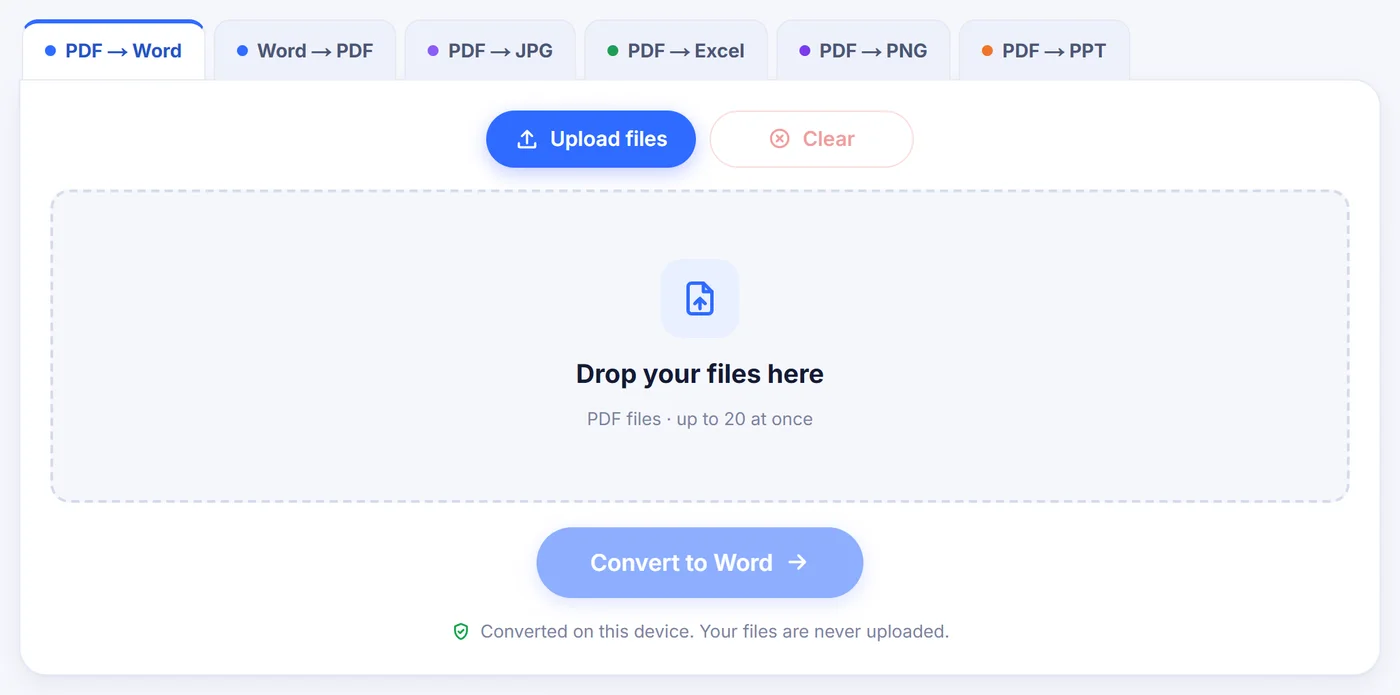
Drop one file or up to 20 at once; locked PDFs ask for their password, which is only used on this device.
Pick a mode
Editable text for documents you want to rewrite, Exact layout for forms and designed pages, plus OCR if pages are scanned.
Save the DOCX
Download the Word file, or a ZIP when you converted several, and open it in Word, LibreOffice or Google Docs.
Why people convert PDF to Word
A PDF is built for reading, not for rewriting. That is fine until someone sends you a contract with one wrong date, a CV you need to update after three years, or a report whose numbers changed last week. Retyping it is slow and error-prone. Turning the PDF into a Word document gives you the original text back as real paragraphs, so you only change the parts that need changing.
Other common reasons: reusing a few pages of a long manual, translating a brochure, adding tracked changes to a draft that only exists as a PDF, or quoting a scanned letter without retyping it.
How the conversion works on this page
When you add a file, the converter first opens it and looks at the first few pages. If they contain almost no selectable text, the file is flagged as scanned and text recognition is switched on for you. Then a small options window appears with the choices below.
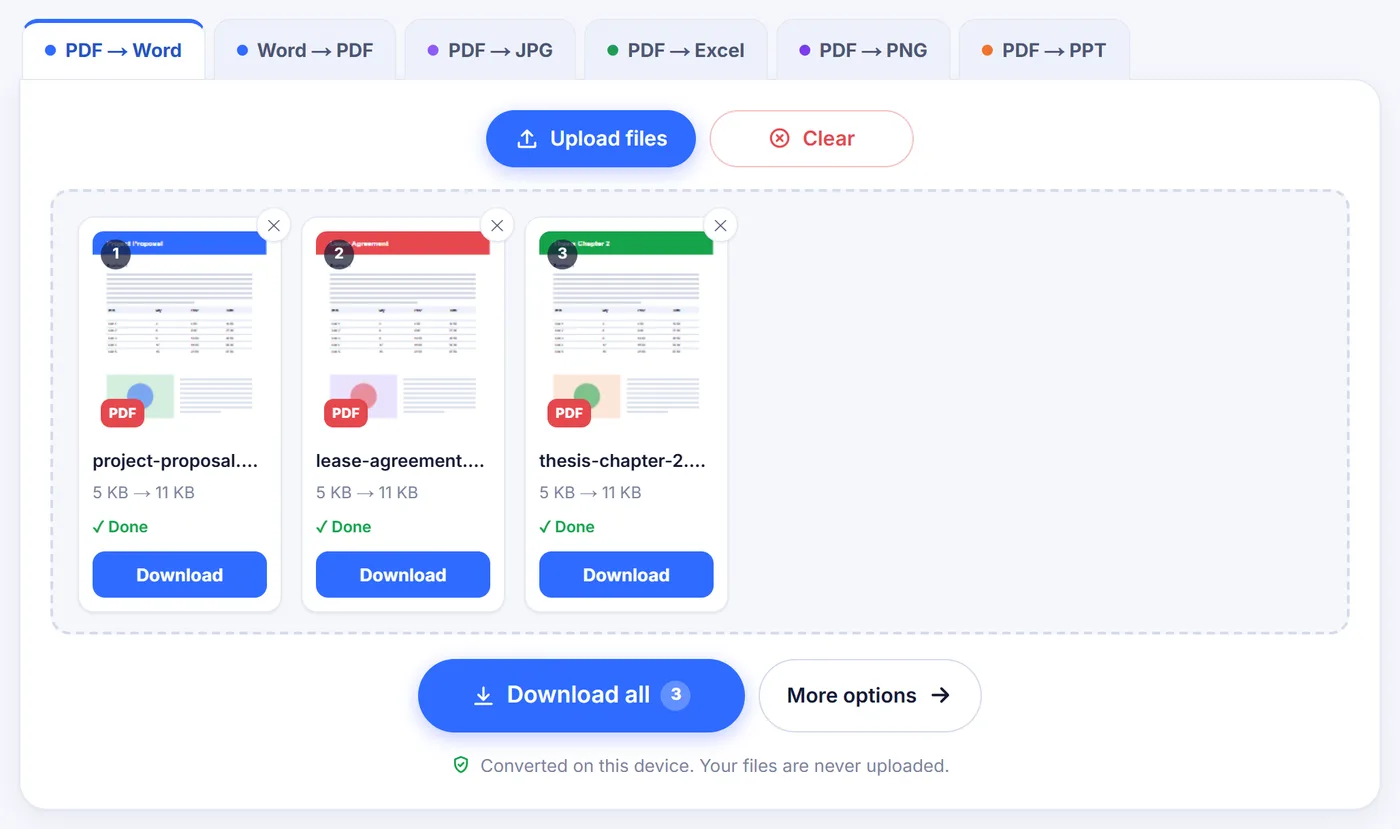
Editable text (recommended)
This mode produces an ordinary Word document. Lines that were broken only because the text reached the edge of the column are joined back into flowing paragraphs, and words split with a hyphen at the end of a line are put back together. Large or bold titles become real Word headings, so the navigation pane in Word shows the structure of the document. Bulleted items become Word lists with their indentation levels, and text arranged in aligned columns is turned into a proper table you can resize.
Exact layout
Some PDFs are not meant to reflow: application forms, certificates, flyers, menus. For those, Exact layout keeps each page looking the way it did. The graphics of the page sit in the background, and every block of text is placed on top of it in its own positioned box, still editable. This works best in Microsoft Word or LibreOffice, because other editors handle positioned frames less reliably.
Other settings
- Pages: when you convert a single file you can type a range such as 2-6, 9 instead of converting the whole thing.
- OCR language: 28 languages are available, from English and Romanian to Arabic, Japanese and Hindi. The language of your browser is preselected.
- More options: keep or drop images and drawings, turn table detection on or off, move repeated headers, footers and page numbers into the real Word header and footer, start every PDF page on a new Word page, and also run OCR on pages that carry almost no text. In Exact layout the table, header and page-break switches are greyed out, since every page is reproduced as it is.
What survives the trip, and what may shift
Text formatting comes through well: bold, italic, font sizes, colours, superscripts and subscripts, alignment and indents. Font names are carried over, and the standard PDF fonts get their usual Word equivalents: Helvetica becomes Arial, Times becomes Times New Roman. If the PDF uses a font you do not have installed, Word substitutes a similar one, so line lengths can change a little.
Photos are cut from a rendering of the page, saved as JPEG and inserted where they were, so a very high-resolution picture may come out slightly softer than in the PDF. Charts and logos drawn as vector shapes are captured as pictures too, which means they look right but cannot be edited as Word charts. Pages laid out in two columns are read column by column, so the text in Word follows the natural reading order instead of jumping across the page.
Things that need a quick look afterwards: complex tables with merged cells or no clear column gaps, text written at an angle (it is kept, but as plain text at the end of that page), and numbered lists, whose numbers are kept as typed text rather than automatic Word numbering. In Editable text mode the page count in Word may differ from the PDF, because text now flows freely.
Scanned PDFs and OCR
A scan is just a photo of paper. There is no text in it to copy, so the converter has to read the letters with optical character recognition. Leave the OCR switch on, pick the language the document is written in, and each scanned page is recognised and then laid out with the same paragraph and table logic as a normal PDF. Recognised text arrives as plain text in the document's main font, so bold, italics and colours from the scan have to be reapplied by hand.
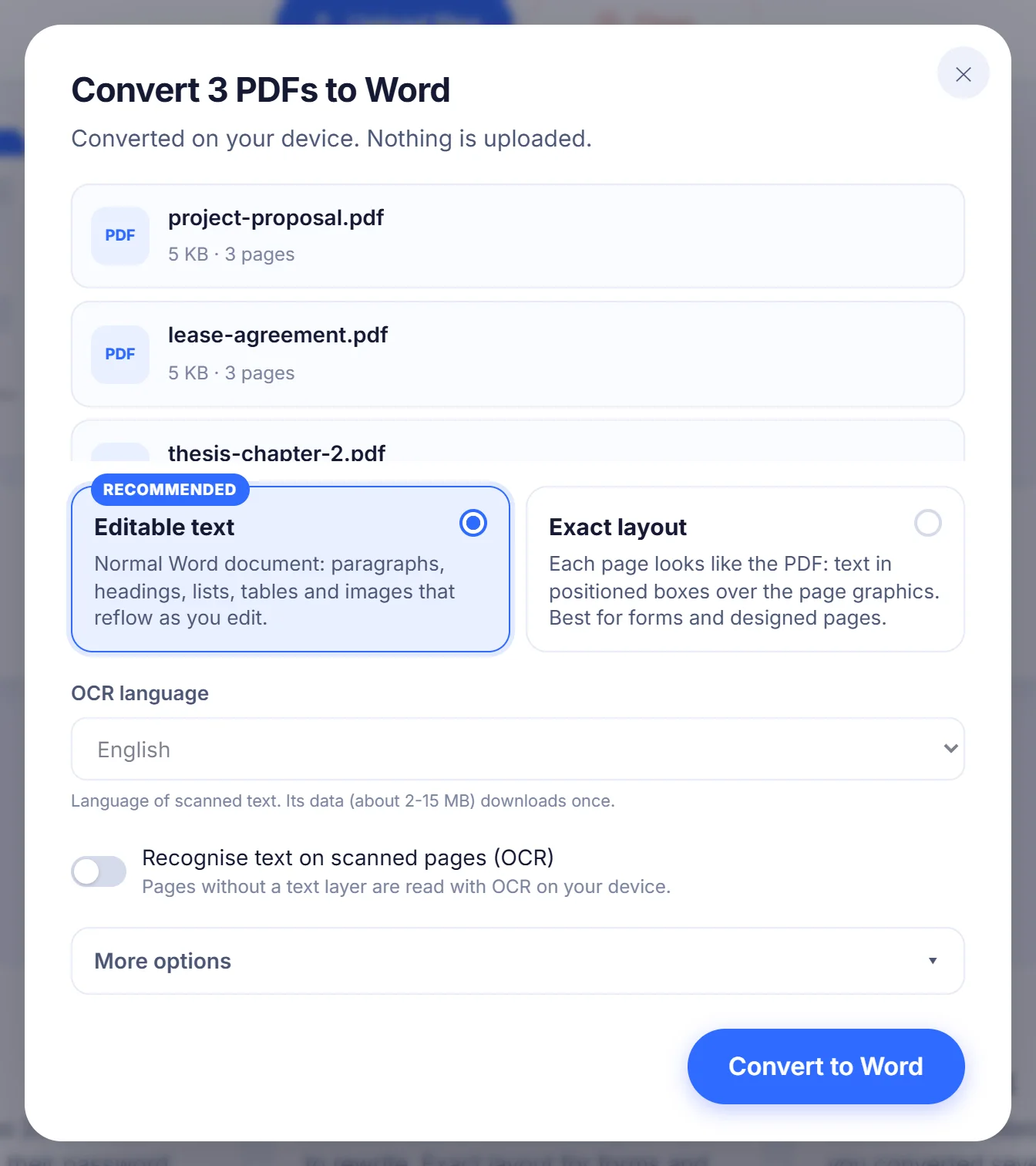
The language data, roughly 2 to 15 MB depending on the language, is downloaded the first time you use it and then reused. If your connection drops at that moment, the conversion still finishes, but scanned pages stay as images and a short note tells you why. For the cleanest results, use straight, sharp scans; faint photocopies and handwriting will need proofreading.
Fixing common problems
- The PDF has a password. You are asked for it before anything happens. Type it in and the file opens; choose Skip if you would rather leave that file out.
- The Word file has no text. The PDF is probably scanned and OCR was off. Run it again with OCR on.
- A very long document stalls on a phone. Phones have less memory than computers. Convert a page range, or use a laptop for files with hundreds of pages.
- One page is damaged. It is left blank in the Word file and the rest of the document is still converted, so you do not lose everything because of a single bad page.
- Headers repeat in the body text. Make sure the header and footer option under More options is on, and choose Editable text, since Exact layout keeps every element in place.
Several files in one go
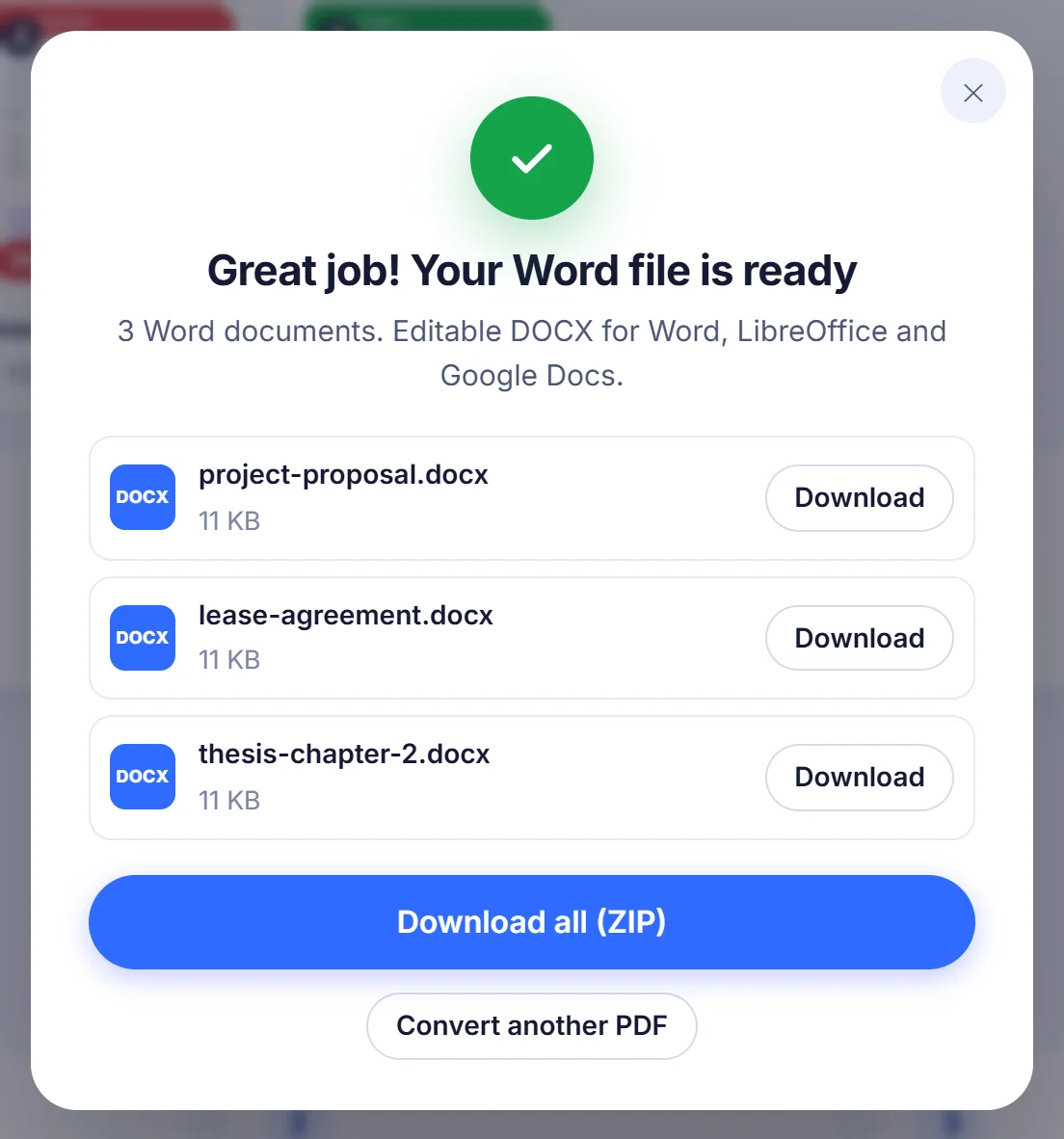
You can queue up to 20 PDFs, reorder or remove them, and convert them with the same settings in one run. Each one becomes its own DOCX with the original file name, for example invoice-march.pdf becomes invoice-march.docx. When there is more than one result you can download them together as a ZIP or one at a time. A Cancel button stops the job at any point.
Your files stay on your computer
Many online converters send your document to a remote machine, convert it there and send it back. Here the work is done by code running in your own browser tab, so the PDF is never transmitted anywhere. That matters for payslips, medical letters, legal drafts and anything else you would not email to a stranger. When you close the tab, the file and the result are gone from memory.
A short note on the two formats
PDF stores each character at a fixed spot on the page, which is why it looks identical everywhere and also why it resists editing. A DOCX file stores text as paragraphs, styles and tables that reflow as you type. Converting between them means rebuilding that structure from positions on a page, which is what this tool does, page by page.
Frequently asked questions
How do I convert a PDF to Word for free?
Add the PDF above, choose Editable text, and press Convert to Word. The DOCX downloads straight from your browser with no account and no watermark.
Can I edit a scanned PDF in Word?
Yes, once it has been read with OCR. Keep the OCR option on and pick the language of the document, then check the result for misread characters.
Will my PDF be uploaded anywhere?
No. The conversion runs inside your browser, so the document never leaves your device. Only the OCR language data is downloaded, once, the first time you need it.
Why does my converted Word document look different from the PDF?
Editable text mode lets paragraphs reflow, and missing fonts are replaced by similar ones. If the page must look exactly like the original, convert it again with Exact layout.
Can I convert only some pages of a PDF to Word?
Yes. With a single file, type a range such as 1-3, 7 in the Pages box. Leave it empty to convert every page.
Does it work with password-protected PDFs?
It does, as long as you know the password. You type it when asked and it is used only on your device to open the file.
Can I convert several PDFs to DOCX at once?
Yes, up to 20 in one run. Each PDF becomes its own Word file, and you can download them all together as a ZIP.